Add the blocks
1
Open Storefront
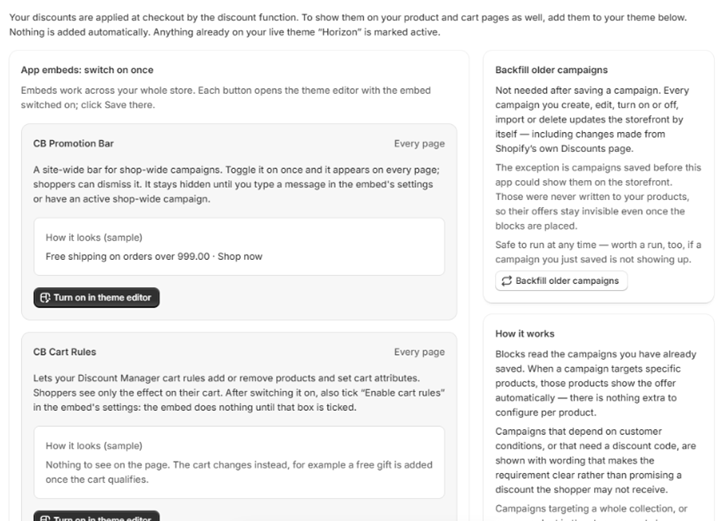
Open Storefront in the app navigation.
2
Add each block once
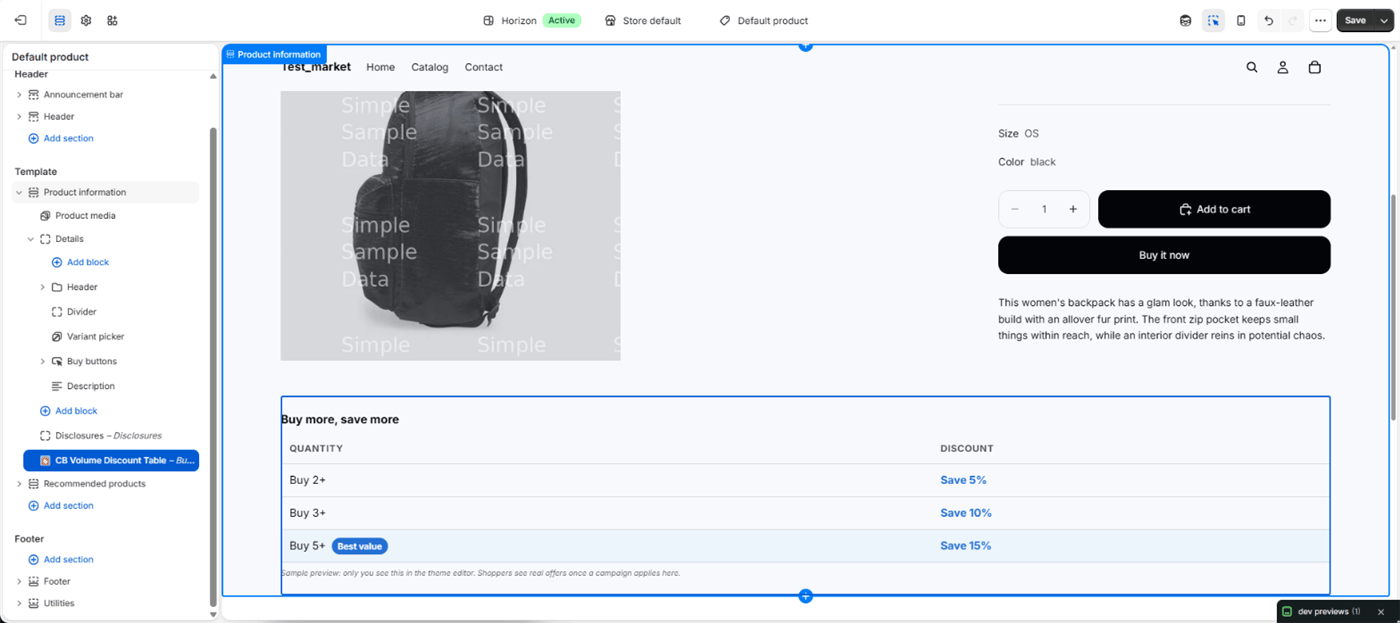
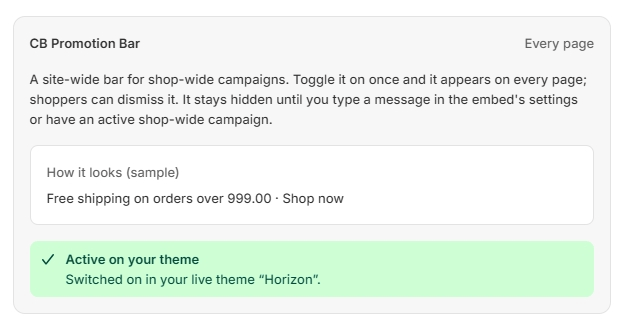
The page is split into App embeds: switch on once and Blocks: place on a page. Click Turn on in theme editor for an app embed, or Add to theme for a block. Your theme editor opens with it selected. Blocks are not added automatically.
3
Save your theme
After that, each block updates by itself whenever you change the campaign.
Available blocks

What appears where
- Only campaigns that target specific products appear on product pages. Campaigns that target a whole collection or every product are not shown there yet.
- Campaigns that depend on customer conditions, or that need a discount code, use wording that makes the requirement clear rather than promising a discount the shopper may not get.
- Expired and scheduled campaigns are not displayed.
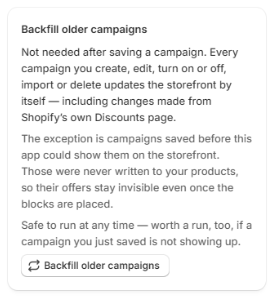
Backfill older campaigns
Saving a campaign writes its offer to the products it targets, so you normally have nothing else to do. The exception is campaigns saved before the app could show offers on the storefront: their offers stay invisible until they are written to your products. Click Backfill older campaigns on the Storefront page to write them. It is safe to run at any time, and worth a run if a campaign you just saved is not showing up. If it stops partway, Resume backfill picks up where it left off without redoing finished campaigns.