
Add custom CSS
1
Open the editor
Open Settings in the app navigation and click Add custom CSS (or Edit custom CSS if you’ve added some before).
2
Paste your CSS
Paste
<style> or <link rel="stylesheet"> tags, or plain CSS.3
Save
Click Save. A message confirms “Custom CSS saved” and the styles apply straight away.
Add custom JavaScript
1
Open the editor
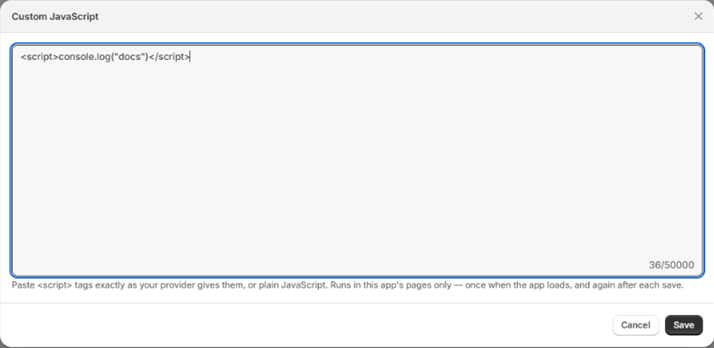
Click Add custom JS (or Edit custom JS).
2
Paste your script
Paste
<script> tags exactly as your provider gives them, including src, async and data-* attributes, or plain JavaScript.3
Save
Click Save. The script runs once when the app loads, and again after each save.
Limits
- CSS and JavaScript are limited to 50,000 characters each.
- To remove your code, open the editor, clear the box and save.
If a script breaks a page of the app, clear it from Settings and save. Your campaigns and discounts are not affected by custom code.