First-time setup
The first time you open it, click Set up Cart Transform. This registers the function with Shopify and switches it on. Nothing changes at checkout until you add an operation.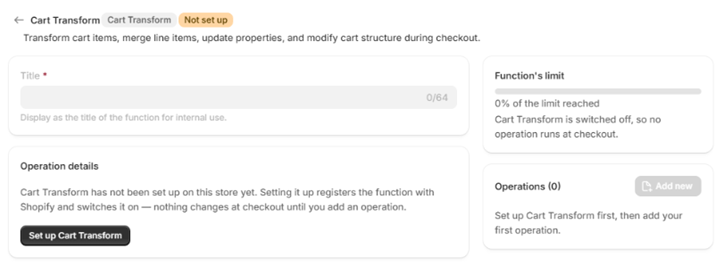
Operations
All operations live in one function. Click Add new and choose a type:
Each operation has an optional Operation name (not shown to customers), an Operation status, and the same customer and cart qualifiers as campaigns. The row menu has Edit, Duplicate, Move up, Move down and Delete.
A saved operation keeps its type. To change it, add a new operation instead.
Merge items
Shopify reduces a merged line by a percentage only; there is no fixed bundle price.
Update line item
Choose which lines to change with Match lines by: a Selector (product, collection, SKU and more) or Specific variants. Then set the update:
Fill in at least one of the three. Use Market scope to apply the update in All markets, or add Market-specific updates for particular markets.